If you haven't read part 1 of this article yet, click HERE to read it first.
Creating Sample Service
Bellow are the steps required to create the sample .NET Service used throughout the remainder of this article:
- Startup Visual Studio, and select the "Visual Basic" node under "Project Types". Under Templates, select "Windows Service" and name the project "MyWinService".
- Under Solution Explorer, select the file name "Service1.vb", and change it to "MyWinService.vb" under Properties section.
- Open "MyWinService.vb" in design mode. Right-Click on the design area and choose "Add Installers". This will place two components called "ServiceProcessInstaller1" and "ServiceInstaller1" onto the design area.
- Select "ServiceInstaller1", change its name to "MyWinServiceInstaller". Also change the ServiceName from "Service1" to "MyWinService".
- Select "ServiceProcessInstaller1", and change its name to "MyWinServiceProcessInstaller".
Important Settings
- Service Installer: Select the ProjectInstaller.vb file from the solution explorer, and click on the MyWinServiceInstaller icon. The Service Installer has the following important properties:
- Description: This is the description that shows under Windows Services, which basically describes your service to other users.
- Service Name: This is the name through which Windows will identify your service.
- Start Type: The options here are Manual, Automatic or Disabled. Automatic will mean that the service will start on its own every time windows starts. Manual means that you have to manually go to services and start it every time you need to use it. Disabled means the service will not be functional at all.
- Service Process Installer: Click on MyWinServiceProcessInstaller icon under ProjectInstaller.vb file. The most important option here is the "Account" option. The choices here are:
- LocalService: Built in account which is similar to authenticated local user. If you run the service under this account it will not have any network rights.
- NetworkService: Built in account which is similar to authenticated network user. Running your service under this mode will avoid password expiration issues and is generally good for domain environments.
- LocalSystem: This is a very powerful high priviledge account that is usually not desired for custom services (even though it makes running the service very easy, it could present security issues later).
- User: This can either be a local machine user or a domain user. If you are planning on deploying your service to other servers on other domains you either have to make sure you use the correct username!
- Service Behavior Options: The general service options determine how the service logs events, how and if it can pause, stop, or resume and so on. Here are the choices:
- AutoLog: If you use this option, you are basically handing over the control of the Event Log Entry to the Service.
- CanHandlePowerEvent: For laptop power events. Not needed for most services.
- CanHandleSessionChangeEvent: Generally a good idea to set this one to True.
- CanPauseAndContinue: Important if you want to allow users to pause and resume the service.
- CanShutdown: Very good idea to set this one to True so you can actually shut down the service!
- CanStop:Again, good idea to set this one to True so you can actually STOP your service!
The Code
By default, two Subroutines called "OnStart" and "OnStop" are created when you create a Windows Service. Here is what needs to be placed in each section of our Windows Service to get the sample service up and running:
Protected Overrides Sub OnStart(ByVal args() As String)
	EventLog.WriteEntry("MyService Started")
End Sub

Protected Overrides Sub OnStop()
	EventLog.WriteEntry("MyService Stopped")
End Sub

Protected Overrides Sub OnPause()
	EventLog.WriteEntry("MyService Paused")
End Sub

Protected Overrides Sub OnContinue()
	EventLog.WriteEntry("MyService Resumed")
End Sub

Protected Overrides Sub OnCustomCommand(ByVal command As Integer)
	If command = 200 Then
		EventLog.WriteEntry("Custom Command 200 invoked")
	ElseIf command = 210 Then
		EventLog.WriteEntry("Custom Command 210 invoked")
	End If
End Sub
To build the service, simply click on "Build > Build MyWinService". This will create an executable file either in ".\bin\Release\" or ".bin\Debug" depending on if you compile it in Debug or Release mode.
Installing Windows Service
There are two ways to install a windows service:
- Using "InstallUtil.exe" for the correct .NET Framework Version.
- By Creating a "Setup and Deployment" project for your service.
When developing the windows service, it is a lot easier to use the Install Utility to install and uninstall your windows service. You do however have to keep track of the version of this utility corresponding to your development framework. For Visual Studio 2005, the .NET Framework 2.0 version of this utility will need to be used.
If you have several versions of the Visual Studio installed on the same machine, and are actively developing using all of them, you may have the following 2 versions of this tool. Please note that depending on the subversion of the framework you have installed the actual version folder name may be different:
C:\WINDOWS\Microsoft.NET\Framework\v1.1.4322\InstallUtil.exe
C:\WINDOWS\Microsoft.NET\Framework\v2.0.50727\InstallUtil.exe
Here are the steps to follow in order to use this utility and install your service:
- Start command prompt by go "Start > Run", typing "cmd" and pressing the "OK" button.
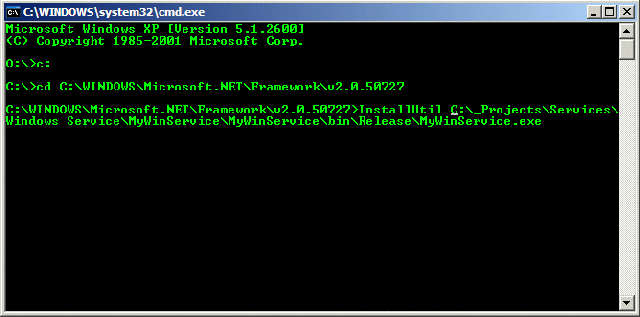
- Navigate to the .NET Framework directory above that corresponds to your version of Visual Studio that you are using to develop the Windows Service (VS 2003 use 1.1, VS 2005 use 2.0). In my case that would be "c:" on command line followed by "cd C:\WINDOWS\Microsoft.NET\Framework\v2.0.50727".
- Invoke the Install Utility by typing InstallUtil "c:\[PATH TO YOUR SERVICE EXE]\MyWinService.exe" to register the windows service. Your screen should look something like this:
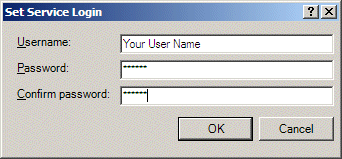
You will be prompted to enter a username and password for the service that looks like this. The username that you enter here can be a domain user, entered in the form "domain\username". Enter both your username and password and hit "OK" to run the utility:
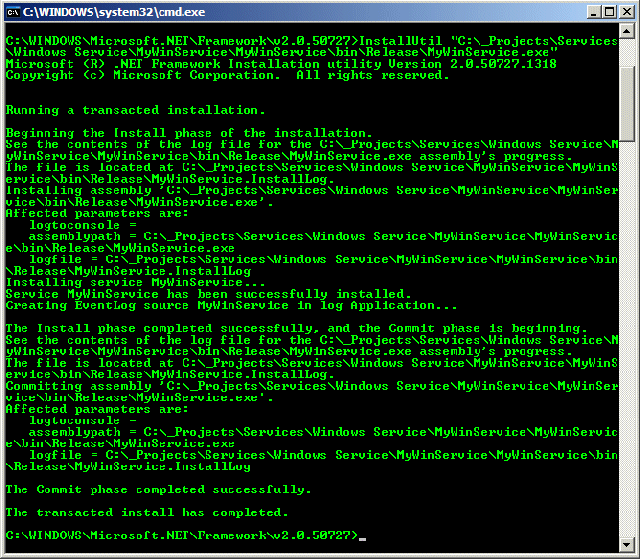
Once the Utility is finished, you should see a screen output similar to the following:
The last step to running the service is to start it from the Service Control. To do this, navigate to "START > Control Panel > Administrative Tools > Services" and start the Service Controller Interface. Scroll down until you see the name "MyWinService". Select that service, Right-Click on it and choose "Properties".
The two important Tabs that we care about are the "General" and "Log On" tabs. On the General Tab, you will see a combo box called "Startup type", with the options "Manual", "Automatic" and "Disabled". Manual option means that the service will not start when windows starts up, while Automatic means that the service DOES start up every time windows starts. Click on the Log On tab. Here you can change the user, under which the service runs. You should have the user you entered in the Install Utility showing on this screen at this point. If you would rather run the service under the local system user, you can select the "Local System Account" radio button. Click "Apply" to accept your changes, then click back on the General Tab. Start the service by clicking on the "Start" button on this tab (alternatively you can start the service directly from the Service Controller by right clicking on the name of it and choosing "Start" from the context menu provided).
Event Log Entries
By starting our custom made .NET Service, a new event log entry is made under the Application Log. To view the events of this log, go to "START > Control Panel > Administrative Tools > Event Viewer" and select the "Application" log section on the left menu of the Event Viewer.
This concludes Part 2 of this article. More to come in Part 3.
Pete Soheil
DigiOz Multimedia
http://www.digioz.com/